Send WhatsApp Message API: Developer Guide With Code (2026)
How to use a send WhatsApp message API: one call to send, webhooks for replies, and code in cURL, Node.js and Python. Works with your existing number.
On this page
Sending WhatsApp messages from your own software used to mean long setup and approvals. With a send WhatsApp message API, your app sends a message with one HTTP request, and every reply comes back to your server through a webhook.
This guide shows how a send WhatsApp message API works, with real code in cURL, Node.js and Python, using the waconnect.ai API.
What Is a Send WhatsApp Message API?
A send WhatsApp message API lets your software send WhatsApp messages with code. Your booking system, CRM or online store calls the API, and the message reaches your customer on WhatsApp.
With waconnect.ai, the WhatsApp message API works with your existing WhatsApp or WhatsApp Business number. You connect the number by scanning a QR code, and you’re ready to send.
Common uses:
Booking confirmations and reminders sent from your booking system
Order updates and receipts sent from your store
Messaging inside your CRM, so your team chats without leaving it
Automations that react to incoming messages in real time
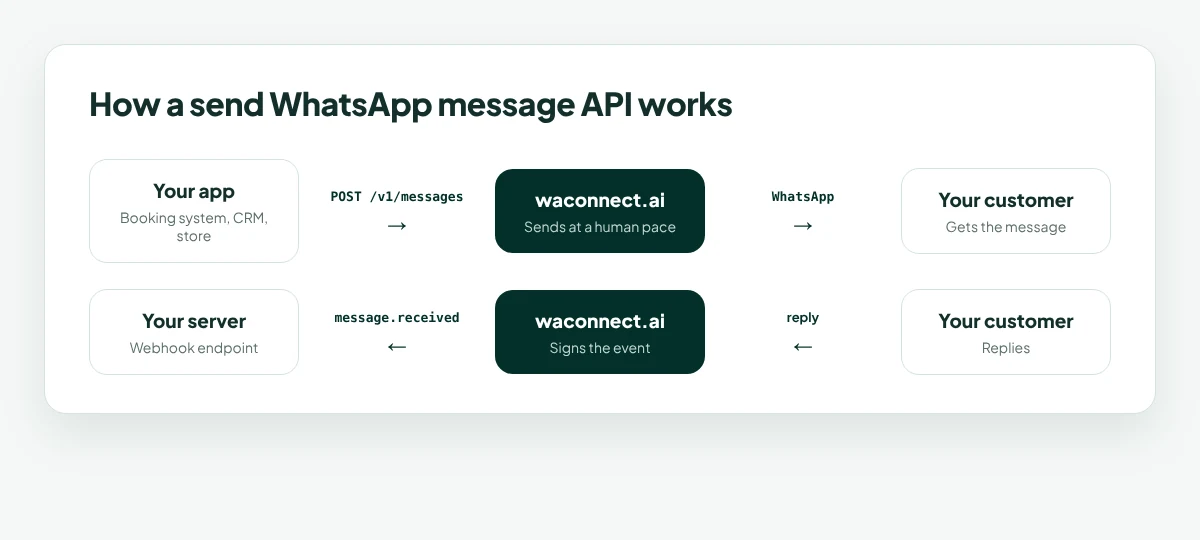
How the waconnect.ai Send WhatsApp Message API Works
The flow has four steps:
Create an API key in Developer settings.
Connect a number: you or your users scan a QR code.
Send messages with POST /v1/messages.
Receive messages on your server through webhooks.
Every request goes to https://api.waconnect.ai/v1 and uses your API key as a Bearer token. You get separate live and test keys, so you can build safely before going to production.
Step 1: Get Your API Key
Create a key in waconnect.ai Developer settings. Then check it works with one call:
Code:
curl https://api.waconnect.ai/v1/me
-H “Authorization: Bearer wc_live_your_key”
Keep your key on your server, never in your website’s front-end code. You can also limit a key to specific numbers, which is useful when two apps share one business.
Step 2: Connect a WhatsApp Number
Before you can use the WhatsApp API to send a message, connect a number. Open WhatsApp on the phone, go to Settings → Linked devices → Link a device, and scan the QR code.
If you’re building for other businesses, use the connect widget. It’s a hosted QR code page you embed in your own app:
Code:
<iframe src="https://waconnect.ai/connect/TOKEN" title="Connect WhatsApp" style="width: 400px; height: 600px; border: 0" ></iframe>
The widget shows a live QR code and instructions, supports light and dark themes, and tells your page when the number connects (the waconnect.ai connected browser event includes the linked phone number).
Step 3: WhatsApp API Send Message (Code Examples)
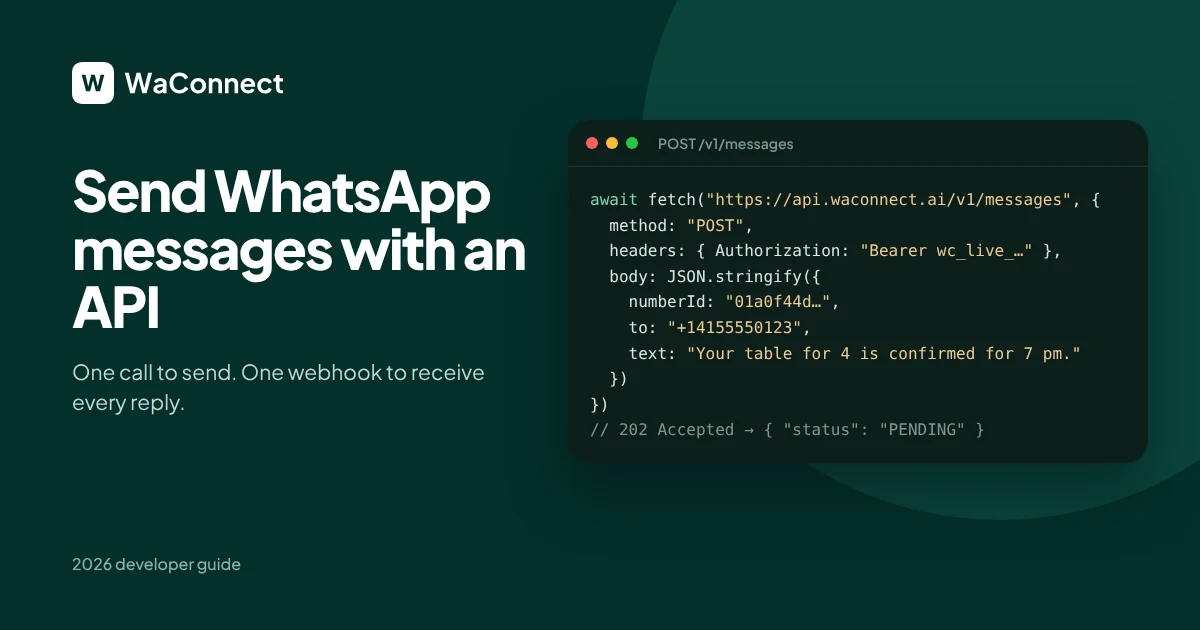
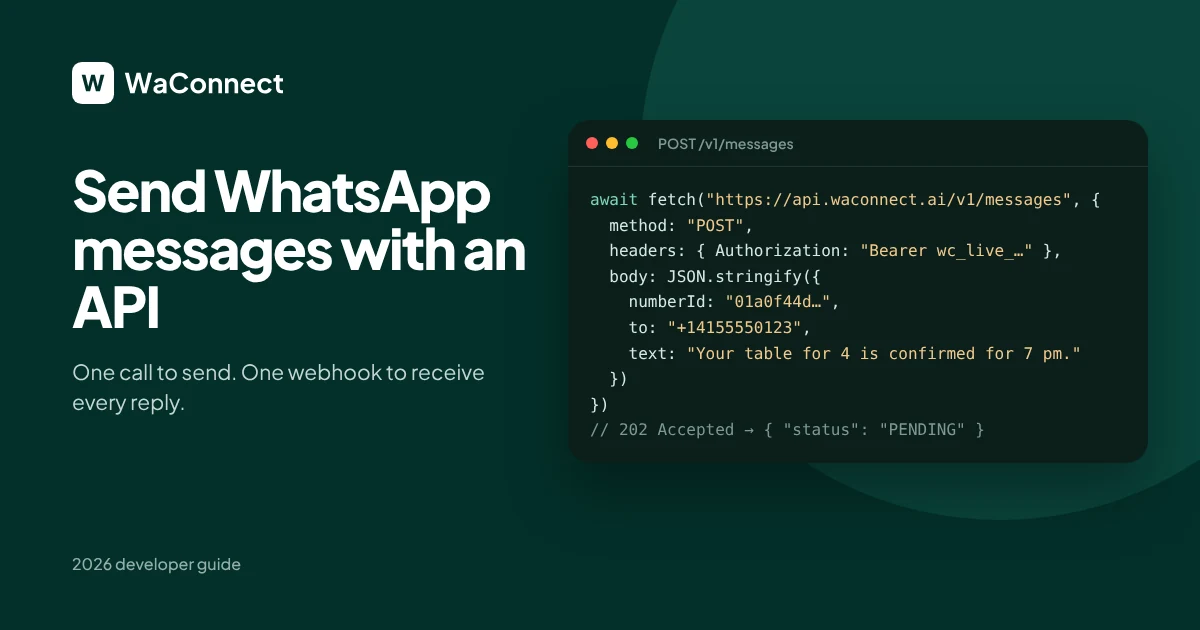
Here’s the core call of the send WhatsApp message API: POST /v1/messages, with the number to send from, the recipient and the text.
cURL:
Code:
curl https://api.waconnect.ai/v1/messages
-H “Authorization: Bearer wc_live_your_key”
-H “Content-Type: application/json”
-d ‘{“numberId”: “YOUR_NUMBER_ID”, “to”: “+14155550123”, “text”: “Your table for 4 is confirmed for 7 pm.”}’
Node.js:
Code:
await fetch(“https://api.waconnect.ai/v1/messages”, {
method: “POST”,
headers: {
Authorization: “Bearer wc_live_your_key”,
“Content-Type”: “application/json”,
},
body: JSON.stringify({
numberId: “YOUR_NUMBER_ID”,
to: “+14155550123”,
text: “Your table for 4 is confirmed for 7 pm.”,
}),
})
Python:
Code:
import requests
requests.post(
“https://api.waconnect.ai/v1/messages”,
headers={“Authorization”: “Bearer wc_live_your_key”},
json={
“numberId”: “YOUR_NUMBER_ID”,
“to”: “+14155550123”,
“text”: “Your table for 4 is confirmed for 7 pm.”,
},
)
The send WhatsApp message API answers with 202 Accepted and a status of PENDING. Your message joins the queue, because waconnect.ai numbers send at a natural, human pace. You’ll get a webhook as it moves from queued to sent, then delivered or read.
You can also send photos and documents, and check whether a phone number is on WhatsApp before you send. Number checks are free.
Step 4: Receive Replies With a WhatsApp Webhook
A WhatsApp webhook pushes every event to your server in real time. Add your webhook URL in the dashboard and choose which events it receives.
Every event arrives in the same envelope:
Code:
{
“id”: “evt_9f2c1b7e4a6d4c0f8e3b2a1d5c6f7e80”,
“type”: “message.received”,
“createdAt”: “2026-10-01T10:15:02.000Z”,
“data”: {}
}
The main events:
message.received: a customer sent a message to one of your numbers
message.queued: your API message was accepted and is waiting its turn
message.sent: a message went out, through the API or typed on the phone
message.status: a sent message was delivered, read, or failed
number.connected / number.disconnected: a number was linked or logged out
Every webhook is signed, so you can verify it really came from waconnect.ai. If your server is down, waconnect.ai keeps retrying for 24 hours.
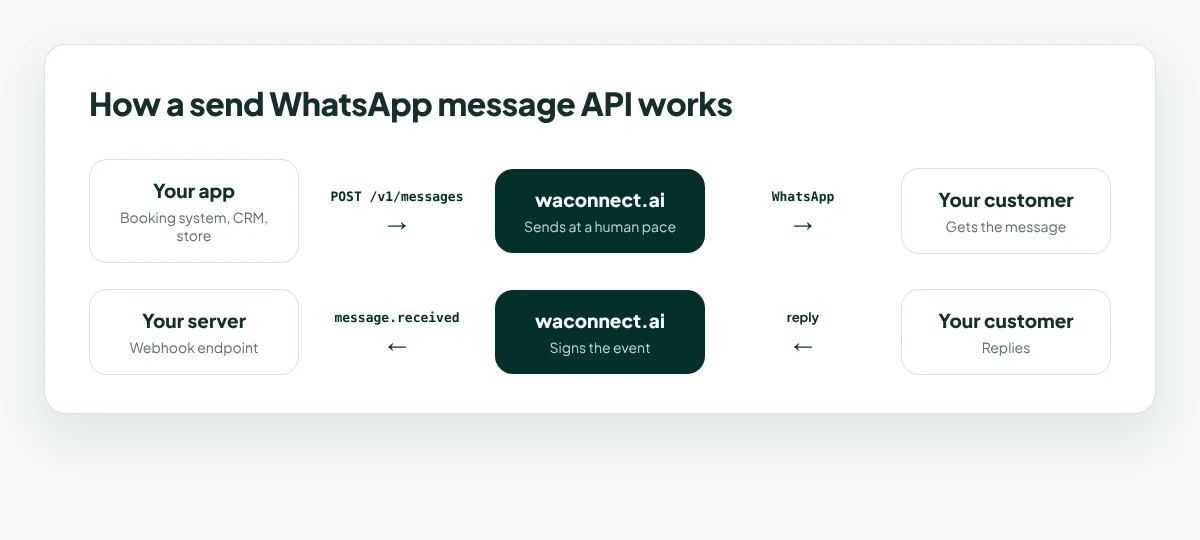
Tip: save each event to your database as it arrives, keyed by the message id. Every webhook carries the whole message: the number, the contact, the text, the status and the time.
Send WhatsApp Message API Rate Limits and Good Practice
120 requests per minute per API key
Use test keys while building, and live keys in production
Check numbers first to avoid sending to numbers that aren’t on WhatsApp
Verify every webhook signature before you trust the data
Respond to webhooks quickly and do heavy work in the background
How Much Does the WhatsApp Message API Cost?
waconnect.ai uses prepaid credits, with no subscription. With the send WhatsApp message API, you pay per message sent or received. Replies typed on the phone, failed messages and number checks are free. New accounts start with 500 free credits.
Why Developers Use waconnect.ai
waconnect.ai is a WhatsApp API for developers who want to ship fast:
One call to send, one webhook to listen
Your users’ existing numbers, connected by QR code
A connect widget you can embed in your own app
Signed webhooks with 24 hours of retries
Live and test keys, limitable to specific numbers
Photos, documents and free number checks
Code samples in cURL, Node.js, Python and PHP in the docs
Building for customer service too? Our WhatsApp AI chatbot guide shows how AI can answer customers on the same numbers.
Send WhatsApp Message API FAQ
How do I send a WhatsApp message with an API?
Create a waconnect.ai API key, connect a number by QR code, then send a POST request to /v1/messages with the number, the recipient and the text.
Can I use my existing WhatsApp number with the API?
Yes. waconnect.ai works with your existing WhatsApp or WhatsApp Business number, connected by scanning a QR code.
How do I receive WhatsApp replies in my app?
Add a WhatsApp webhook in the waconnect.ai dashboard. Every reply arrives on your server as a message.received event.
Can I send photos and documents through the API?
Yes. The waconnect.ai API sends photos and documents as well as text.
What is the rate limit?
120 requests per minute per API key.
How much does the send WhatsApp message API cost?
You pay per message with prepaid credits, and new accounts start with 500 free credits.
Send your first WhatsApp message with code
Get an API key and try the send WhatsApp message API in five minutes.
Start free with 500 credits at waconnect.ai