WhatsApp Automation: Complete 2026 Guide for Small Business
WhatsApp automation explained: send automatic messages, auto replies and reminders from one shared inbox on your existing number. Templates inside.
On this page
Your customers are already on WhatsApp. They message you to book a table, move an appointment, ask if you're open on Sunday, or check a price. Without WhatsApp automation, one person answers all of that from one phone, messages get missed, replies come late, and customers go elsewhere.
WhatsApp automation handles your routine conversations for you. Automatic messages answer common questions, send reminders and run campaigns, while your team handles the chats that need a human. This guide covers what to automate first, the three ways to set it up, a step-by-step plan, copy-paste templates, and the mistakes that get numbers into trouble.
What Is WhatsApp Automation for Small Business?
WhatsApp automation is software that sends, sorts or answers WhatsApp messages for you, based on rules or AI. Every WhatsApp automated response is triggered by something specific: a new message, a booking, a time of day, or a keyword like STOP. For a small business, it usually covers four jobs:
Auto replies to common questions like opening hours, prices, location and availability
Reminders and confirmations for bookings, appointments and payments
Campaigns (broadcasts) to customers who have already messaged you, such as offers or updates
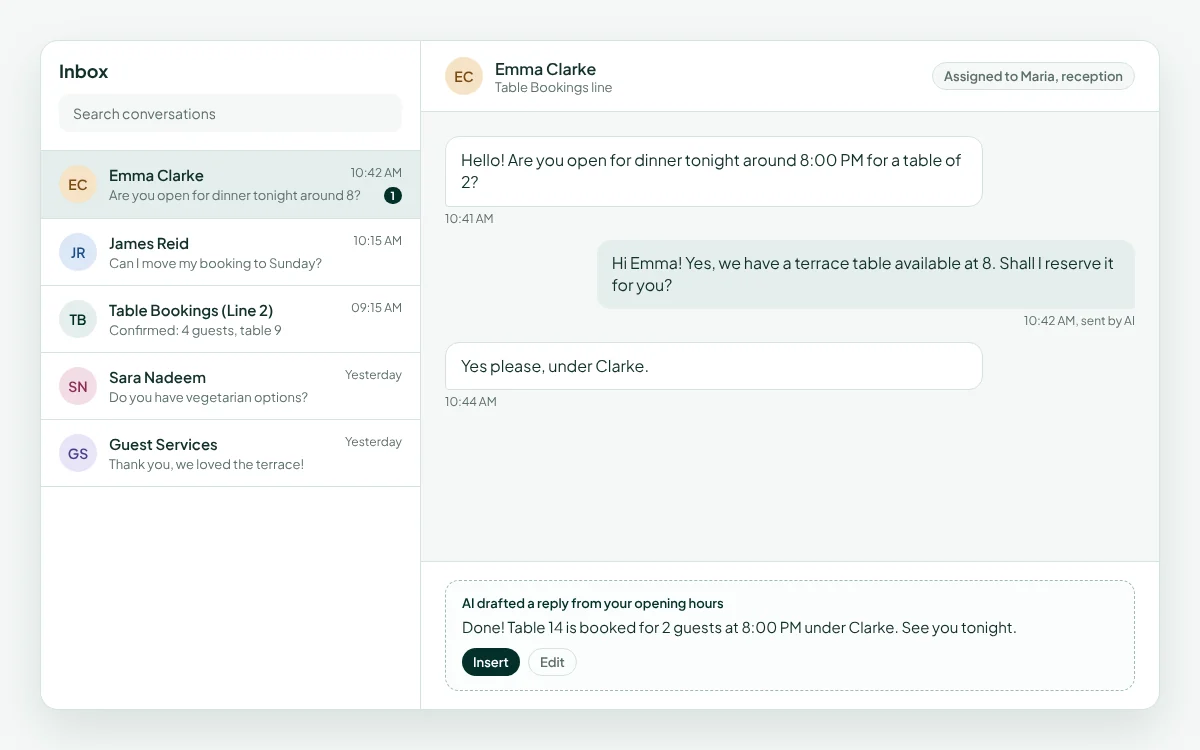
A shared inbox so several staff members can answer from the same number without passing a phone around
The goal isn’t to remove people from the conversation. It’s to stop your team from typing the same answer fifty times a day, so they have time for the customers who need them.
Why Small Businesses Are Automating WhatsApp in 2026
WhatsApp is where your customers already are. On Meta’s Q1 2025 earnings call, Mark Zuckerberg said WhatsApp now has more than 3 billion monthly actives, with more than 100 million people in the US. More than 100 billion messages are sent on the platform every day, according to Meta.
Businesses have followed their customers there. Meta confirmed in 2023 that over 200 million people use the WhatsApp Business app every month, mostly micro and small businesses.
That volume creates the problem WhatsApp automation solves. A busy restaurant, clinic or salon can get dozens of WhatsApp messages a day, and most of them ask the same handful of things. Without automation, you get:
Slow replies during busy hours, when customers are most likely to book
No replies after closing, even though people message at night
Staff answering from personal phones, so conversations get lost when someone leaves
Broadcasts sent to everyone, which customers ignore or report
What You Can Automate on WhatsApp (By Business Type)
Start with the messages you answer most often. These are the highest-value automations for common small businesses:
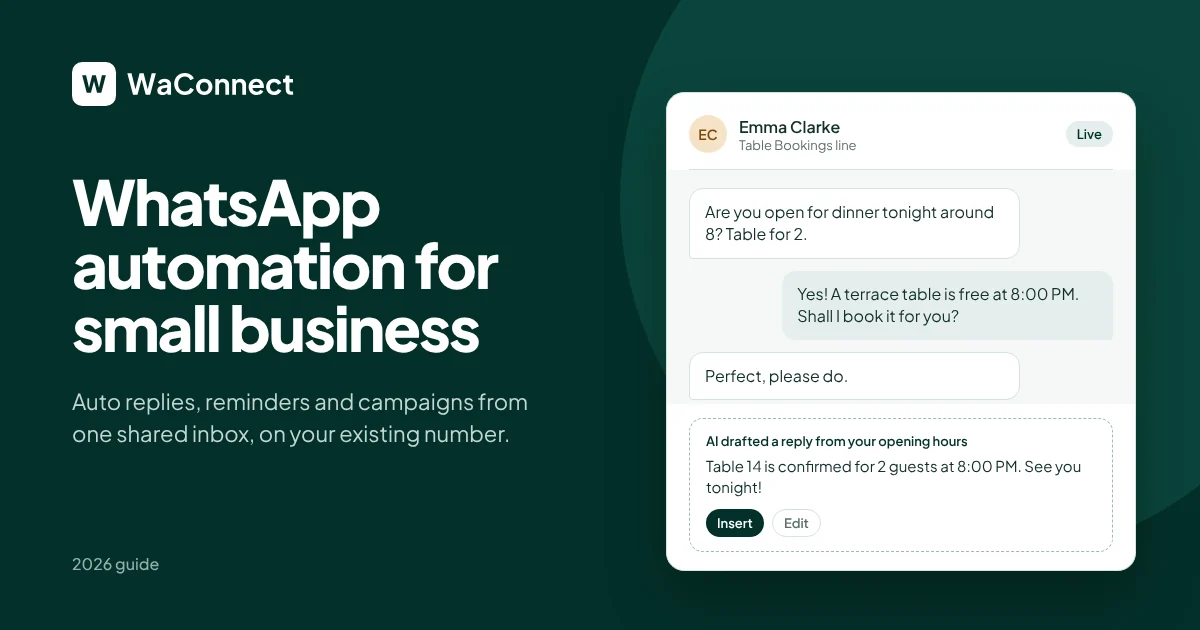
Restaurant: automate table bookings and confirmations. Example: “Your table for 4 is confirmed for 8:00 PM.”
Clinic: automate appointment reminders. Example: “Reminder: your appointment is tomorrow at 10:30 AM. Reply 1 to confirm or 2 to reschedule.”
Salon: automate booking reminders and gap-filling offers. Example: “We have a 3 PM slot open today. Want it?”
School: automate parent notices and fee reminders. Example: “Reminder: the term fee is due on Friday.”
Property manager: automate viewing bookings and maintenance requests. Example: “Your viewing is booked for Saturday at 11 AM.”
Car dealer: automate lead follow-up and test drive bookings. Example: “Thanks for your interest in the 2022 Corolla. Would you like a test drive this week?”
Hotel: automate pre-arrival info and guest questions. Example: “Check-in is from 2 PM. Parking is free for guests.”
Rule of thumb: automate the predictable, and keep humans for the important. Complaints, refunds, unusual requests and anything emotional should always reach a person.
Three Ways to Set Up WhatsApp Automation
There are three main routes. Each one has real trade-offs.
1. WhatsApp Business app (free)
Setup: free app on one phone
Existing number: yes
Approval needed: no
Automation: greeting, away message, quick replies
Team inbox: limited to linked devices
Main drawback: doesn’t scale beyond a few chats a day
2. WhatsApp Business API (official)
Setup: through a Meta-approved provider, with business verification
Existing number: usually needs a dedicated number
Approval needed: yes, plus approved message templates
Automation: full chatbots, templates, integrations
Team inbox: yes, through the provider
Cost: provider fee plus Meta’s per-message charges
Main drawback: slow setup and strict template rules
3. Linked-device platforms (like WaConnect)
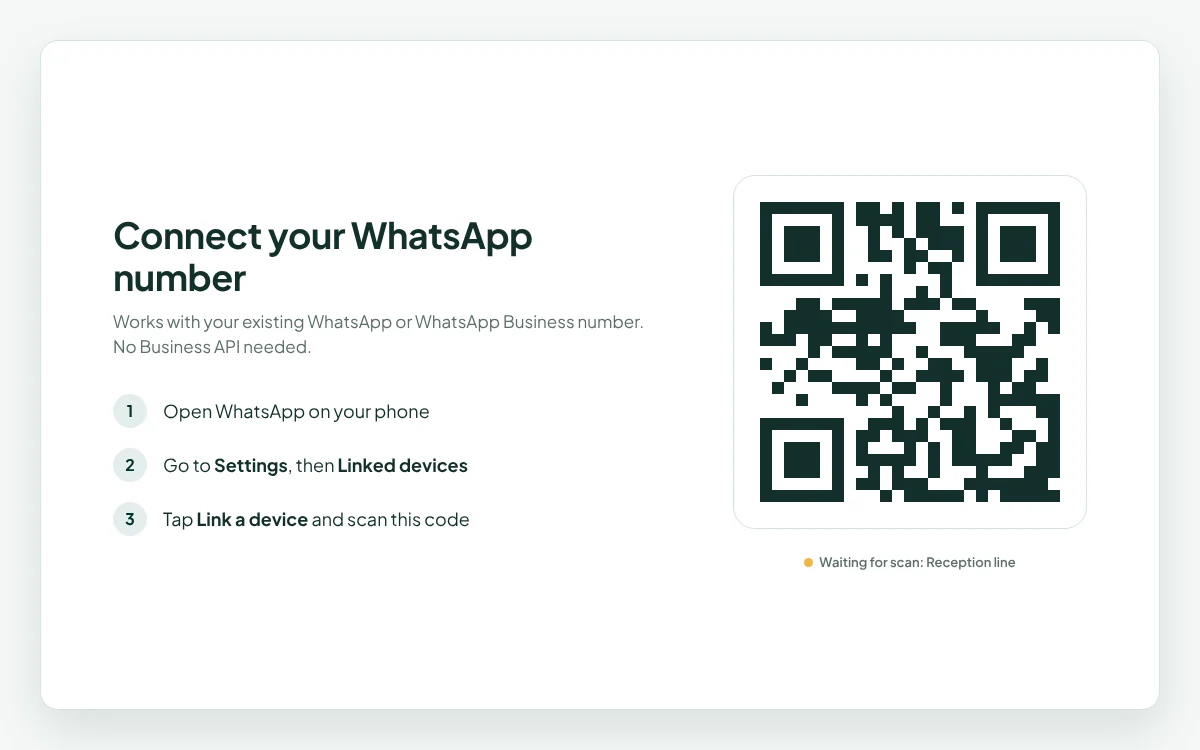
Setup: scan a QR code from Linked devices
Existing number: yes
Approval needed: no
Automation: AI replies, campaigns, rules, API
Team inbox: yes
Cost: prepaid credits, pay per message ($5 free to start)
Main drawback: you must follow WhatsApp’s rules on bulk messaging
When to use which:
Business app only: you’re a one-person business with a few chats a day.
Official Business API: you’re a large brand sending high volumes to customers who haven’t messaged you first, and you can handle verification and template approval.
A linked-device platform: you’re a small or growing business that wants AI replies, a team inbox and campaigns on the number you already use, without waiting for approval.
The third option is the fastest way to start. It also means sending responsibly: message people who already talk to you, and respect opt-outs. There’s more on that in the mistakes section.
How to Set Up WhatsApp Automation Step by Step
Here’s a practical setup plan that works for most small businesses.
List your top 10 questions. Before you set up any WhatsApp automation, go through last week’s chats and write down what people ask most. Hours, prices, location, availability and “can I book?” usually make up most of it.
Write your business info in one place. Opening hours, menu or services, prices, address, booking rules and holiday dates. AI replies are only as good as this information.
Connect your number. On a linked-device platform, open WhatsApp on your phone, go to Settings → Linked devices, tap Link a device, and scan the QR code. It takes under a minute.
Turn on AI replies for routine questions. Let the AI draft or send answers to the questions from step 1. Set it to hand over complaints and unusual requests to your team.
Set business hours. Decide what happens after closing. A short “we’ll reply in the morning” message beats silence, and it avoids messaging customers at night.
Bring your team into one inbox. Add staff, connect your other numbers (reception, bookings, sales), and assign chats so no two people answer the same customer.
Build audience lists from real chats. Group customers who have messaged you, such as “weekend diners” or “monthly clients.” Don’t import random number lists.
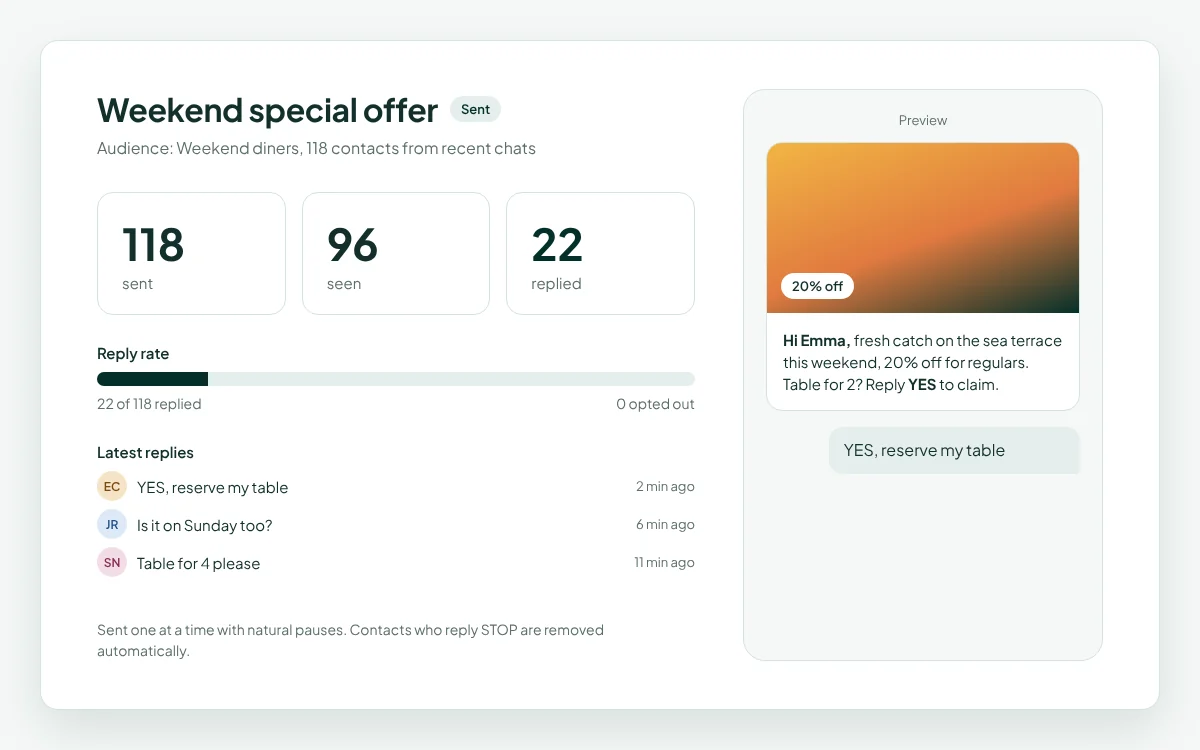
Send your first small campaign. Pick one list, one clear offer and one call to action, like “Reply YES to book.” Check replies and opt-outs before sending more.
Review weekly. Look at the questions the AI couldn’t answer and add them to your business info. Check which campaigns got replies, not just views.
Copy-Paste Automatic WhatsApp Message Templates
Adjust these WhatsApp automation templates to your business. Keep them short and personal, and always give a clear next step.
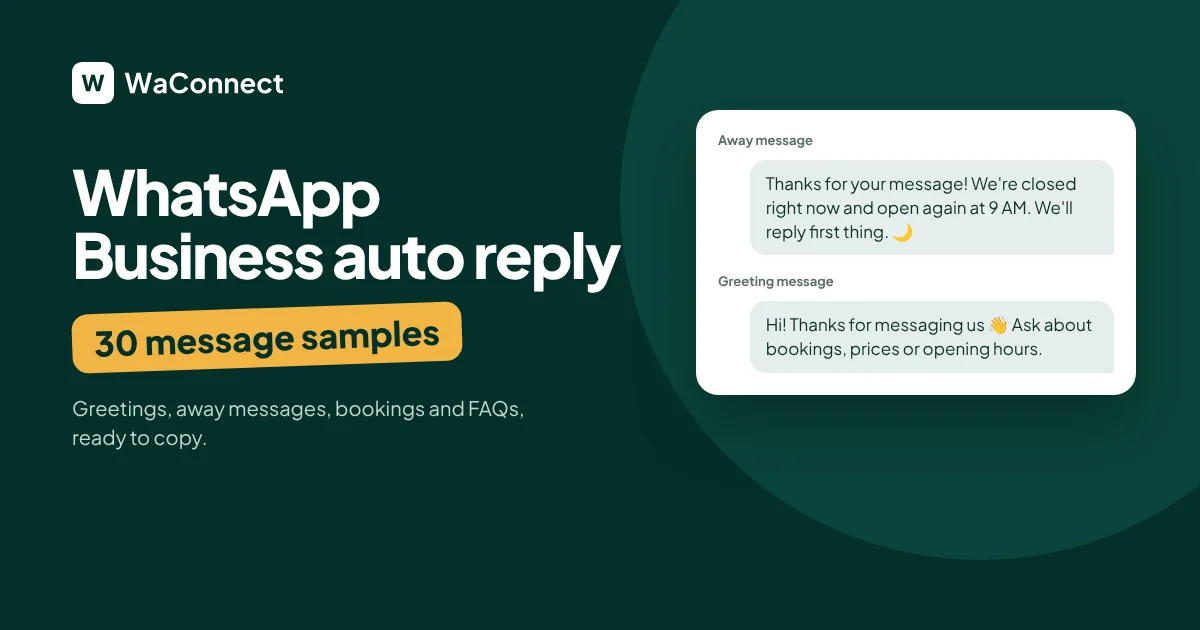
Greeting (first message):
Hi {name}, thanks for messaging {business}! How can we help today? You can ask about bookings, prices or opening hours.
After hours:
Thanks for your message! We’re closed right now and open again at {time}. We’ll reply first thing.
Booking confirmation:
Hi {name}, your booking for {service} on {date} at {time} is confirmed. Reply 2 if you need to change it.
Appointment reminder (24 hours before):
Hi {name}, a quick reminder of your appointment tomorrow at {time}. Reply 1 to confirm or 2 to reschedule.
No-show follow-up:
Hi {name}, we missed you today. Would you like to book another time this week?
Offer to past customers:
Hi {name}, this weekend only: {offer}. Reply YES and we’ll save you a spot.
Feedback request:
Thanks for visiting {business}, {name}! How was everything? Reply with a number from 1 to 5.
Opt-out line (add to campaigns):
Reply STOP if you’d prefer not to get offers from us.
WhatsApp Automation Mistakes to Avoid
WhatsApp automation helps you reply faster. Used badly, it can get your number restricted. Avoid these:
Messaging people who never contacted you. Bought or scraped lists are the fastest way to get reported. Only message customers who already chat with you.
Blasting everyone at once. Hundreds of identical messages sent in seconds look like spam. Send gradually, and personalize with names and details.
Ignoring opt-outs. When someone replies STOP, remove them right away and never message them again.
Messaging at night. Automated messages at 2 AM annoy customers and lead to blocks. Keep sending inside business hours.
Letting AI handle complaints. An angry customer talking to a bot gets angrier. Route complaints to a person.
Never updating your info. If your hours change and your AI doesn’t know, it will give wrong answers with confidence.
Measuring the wrong thing. “Sent” means nothing on its own. Track replies, bookings and opt-outs.
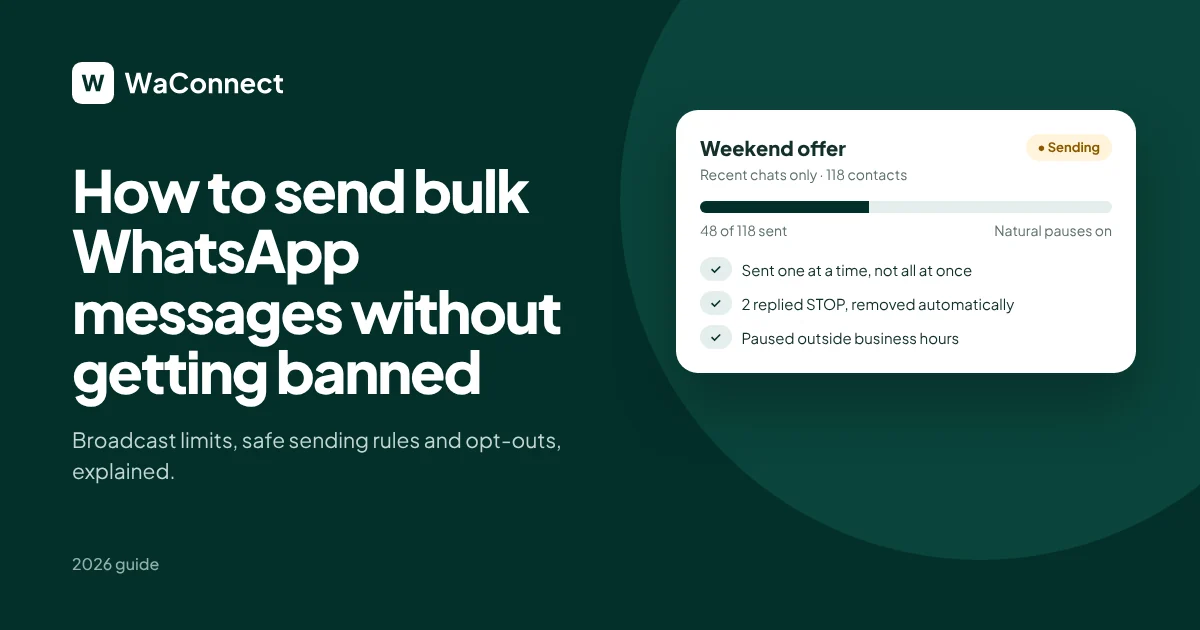
For the full playbook, see our guide on how to send bulk WhatsApp messages without getting banned.
How WaConnect Handles WhatsApp Automation
WaConnect makes WhatsApp automation simple for small and growing service businesses that live on WhatsApp, such as restaurants, clinics, salons, schools, hotels, property managers and car dealers.
Connect in about 2 minutes: scan a QR code from Linked devices. It works with your existing WhatsApp or WhatsApp Business number, with no Business API or Meta approval needed.
AI replies that know when to hand over: answers come from your hours, menu and services. Complaints go to your team.
AI trained on your business: upload documents, add your website, or connect your Shopify store, and the AI answers from all of it, including product prices and stock.
One shared inbox: every number and every chat in one place, with chats assigned to the right person.
Campaigns people actually read: personalized broadcasts with photos, sent only to recent chats, with sent, seen and replied counts.
Built to keep numbers healthy: human-like sending with natural pauses, automatic STOP handling, and replies that pause after business hours.
A simple API: one call to send and one signed webhook to receive replies, if you want to connect your booking system or CRM. See the developer docs.
See the full list of features or how it works.
WhatsApp Automation FAQ
How do I send automatic messages on WhatsApp?
The free WhatsApp Business app can send a greeting message and an away message. A WhatsApp Business auto reply like this works for simple cases, but it can't answer questions about prices or bookings. For anything more, like AI replies, reminders or campaigns, connect your number to an automation platform such as WaConnect by scanning a QR code, then set your rules and business info in the dashboard.
Is WhatsApp automation allowed?
Businesses message customers on WhatsApp every day, but WhatsApp restricts spam and can limit any number that breaks its rules. Message only people who have contacted you or agreed to hear from you, respect opt-outs, and never send spam. Most problems come from bulk messaging strangers.
Can I automate WhatsApp with my existing number?
Yes. Linked-device platforms like WaConnect connect your current WhatsApp or WhatsApp Business number by QR code, so you keep the number your customers already know.
What’s the difference between the WhatsApp Business app and the Business API?
The free app runs on one phone with basic automation like greetings and quick replies. The official Business API is for larger companies, needs a Meta-approved provider and business verification, and charges per message. Linked-device platforms sit in between: more automation than the app, without API approval.
Can my number get banned for using automation?
Any number can be restricted if it sends spam or gets reported often. You lower the risk by messaging only existing contacts, sending gradually, honoring STOP replies and avoiding night-time messages.
Do I need coding skills to automate WhatsApp?
No. Auto replies, reminders, campaigns and the shared inbox are set up from a dashboard. An API is only needed if you want to connect WhatsApp to your own software.
What should a small business automate first?
Start with your most repeated questions (hours, prices, availability) and appointment or booking reminders. These save the most time and reduce no-shows.
Ready to automate your WhatsApp?
Connect your number in 2 minutes and start free with $5 in credits. No Business API needed.